 站长资讯网
站长资讯网
安装C/C++插件
打开插件页面,搜索输入C/C++搜索C/C++插件。
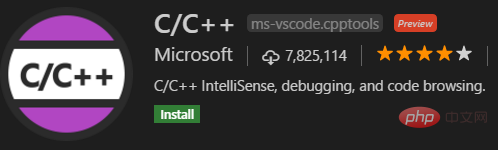
安装该插件后,使用vscode打开包含cpp文件的文件夹时,vscode会添加.vscode子文件夹到目录中。
添加c_cpp_properties.json配置
通过快捷键⇧⌘P运行C/Cpp: Edit configurations,添加缺失的c_cpp_properties.json文件。默认的添加的文件如下:
{ "configurations": [ { "name": "Mac", "includePath": [ "${workspaceFolder}/**" ], "defines": [], "macFrameworkPath": [ "/Applications/Xcode.app/Contents/Developer/Platforms/MacOSX.platform/Developer/SDKs/MacOSX10.14.sdk/System/Library/Frameworks" ], "compilerPath": "/usr/bin/clang", "cStandard": "c11", "cppStandard": "c++17", "intelliSenseMode": "clang-x64" } ], "version": 4 }
这个部分没有做什么调整。采用的是默认添加的文件。
添加tasks.json配置文件
通过快捷键⇧⌘P选择执行的命令,选择Task: Configure Task命令,选择Create tasks.json from templates,选择Others来创建一个外部命令。根据自己的编译器更换commnd选项。
{ // See https://go.microsoft.com/fwlink/?LinkId=733558 // for the documentation about the tasks.json format "version": "2.0.0", "tasks": [ { "label": "cpp", "type": "shell", "command": "g++", "args": [ "-g", "${file}", "-o", "a.out" ], "group": { "kind": "build", "isDefault": true } } ] }
这里需要说一点,希望对当前标签页的代码进行编译执行,因此args参数中用的是${file}。另外需要说的一点是,如果不指定输出的编译文件,会影响调试。
>> g++ -g question.cpp -o a.out
当然也可以把args中的a.out替换为${file}保持和文件名的对应。
添加launch.json配置文件
在调试界面点击运行,会提示添加launch.json配置文件。其定义了启动调试文件的相关属性。
{ // 使用 IntelliSense 了解相关属性。 // 悬停以查看现有属性的描述。 // 欲了解
